Where can I find the QR code for sharing materials and collections?
To easily link to your own or other authors' materials and collections, twillo provides you with a QR code. You can also retrieve this without logging into the portal beforehand. In order for the QR code to function correctly, the material or collection in question must have been released to the public.
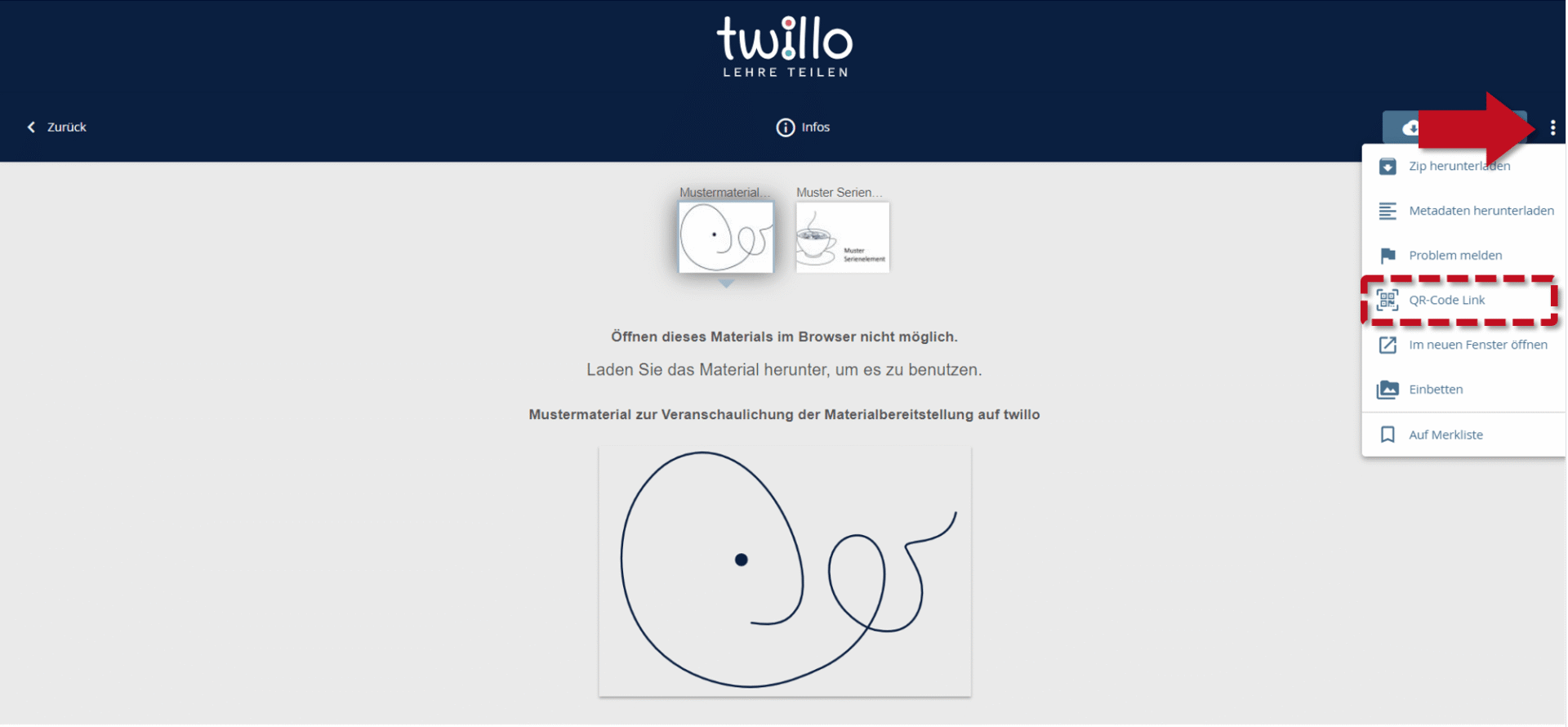
You can find the code for a material via the menu in the header: Click on the three dots and then select the QR code link option to display the QR code. You can then copy or save it by right-clicking on the image of the code.
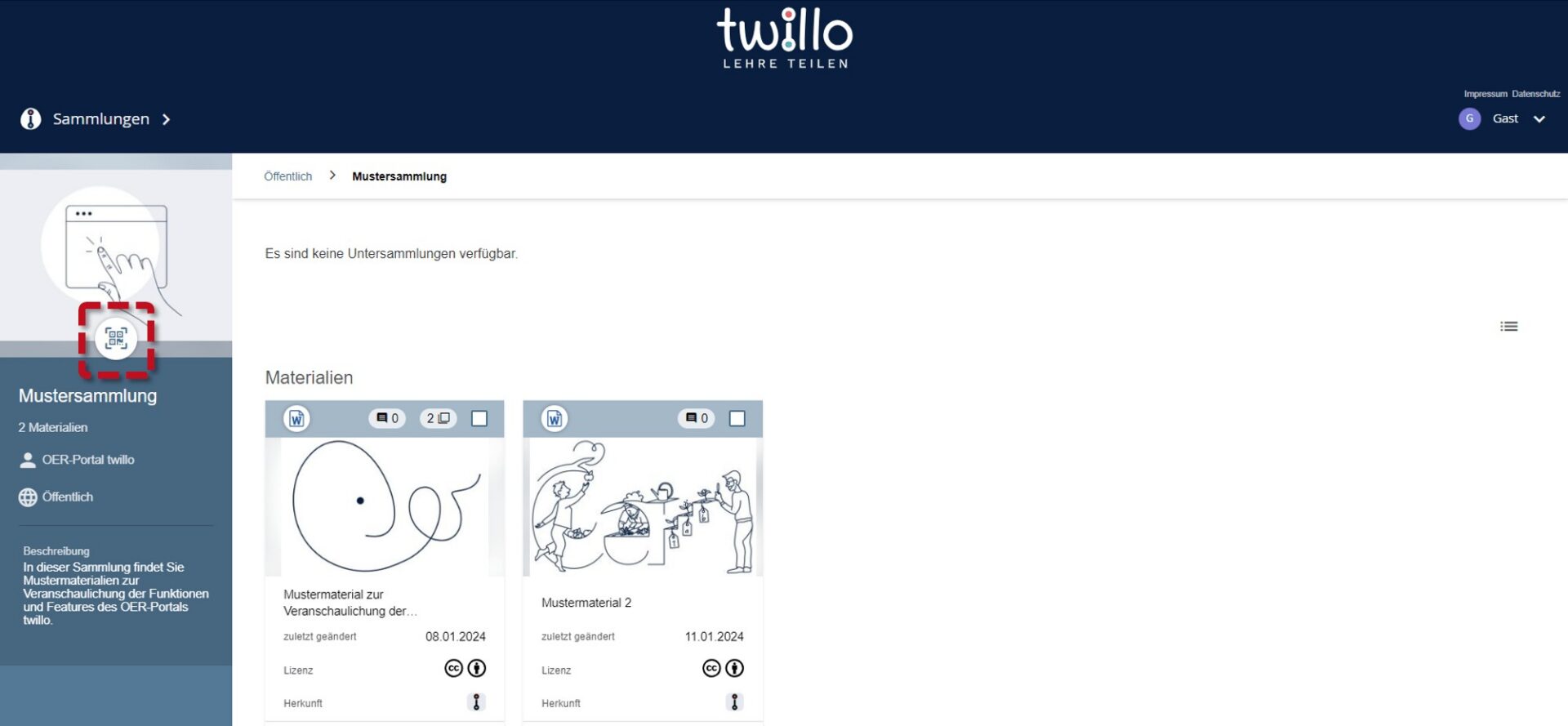
For a collection that you have not created yourself, you can call up the code directly on the collection page by clicking on the small QR code symbol.
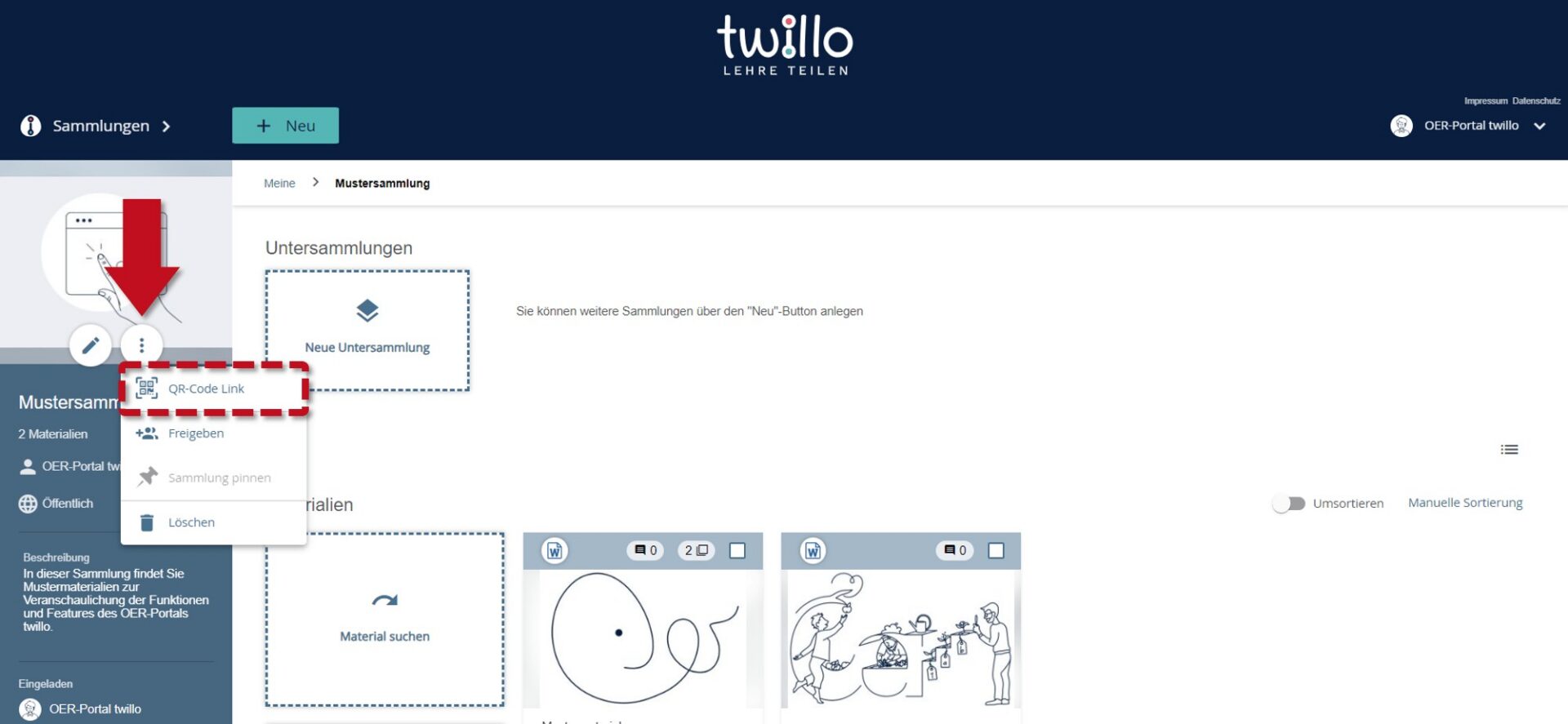
If you are logged in, you can find the QR code in your own collections via the collections menu - the three dots below the preview image - and then selecting the QR code link option.
The QR code of a collection or material is available to you in the long term. If you remove content from a collection or add new content, the QR code remains unchanged. The same applies if you replace a material with a new version.