How do I upload a preview image for my material?
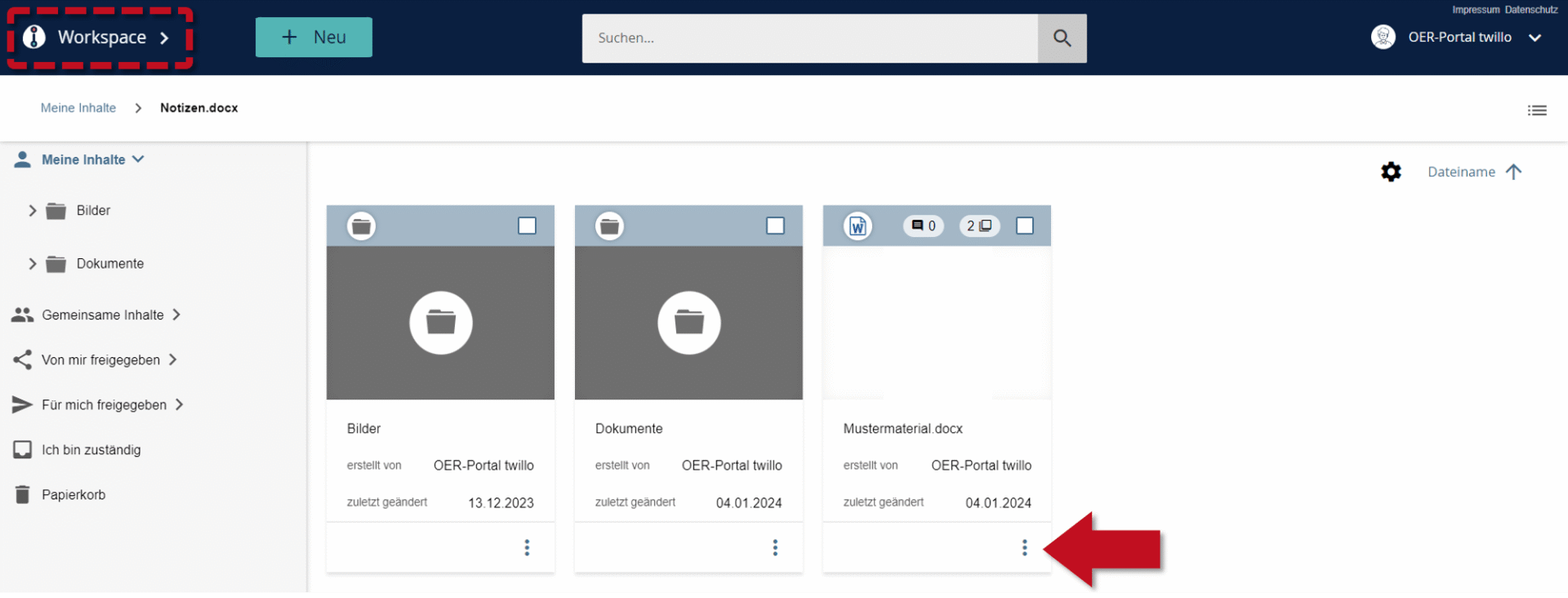
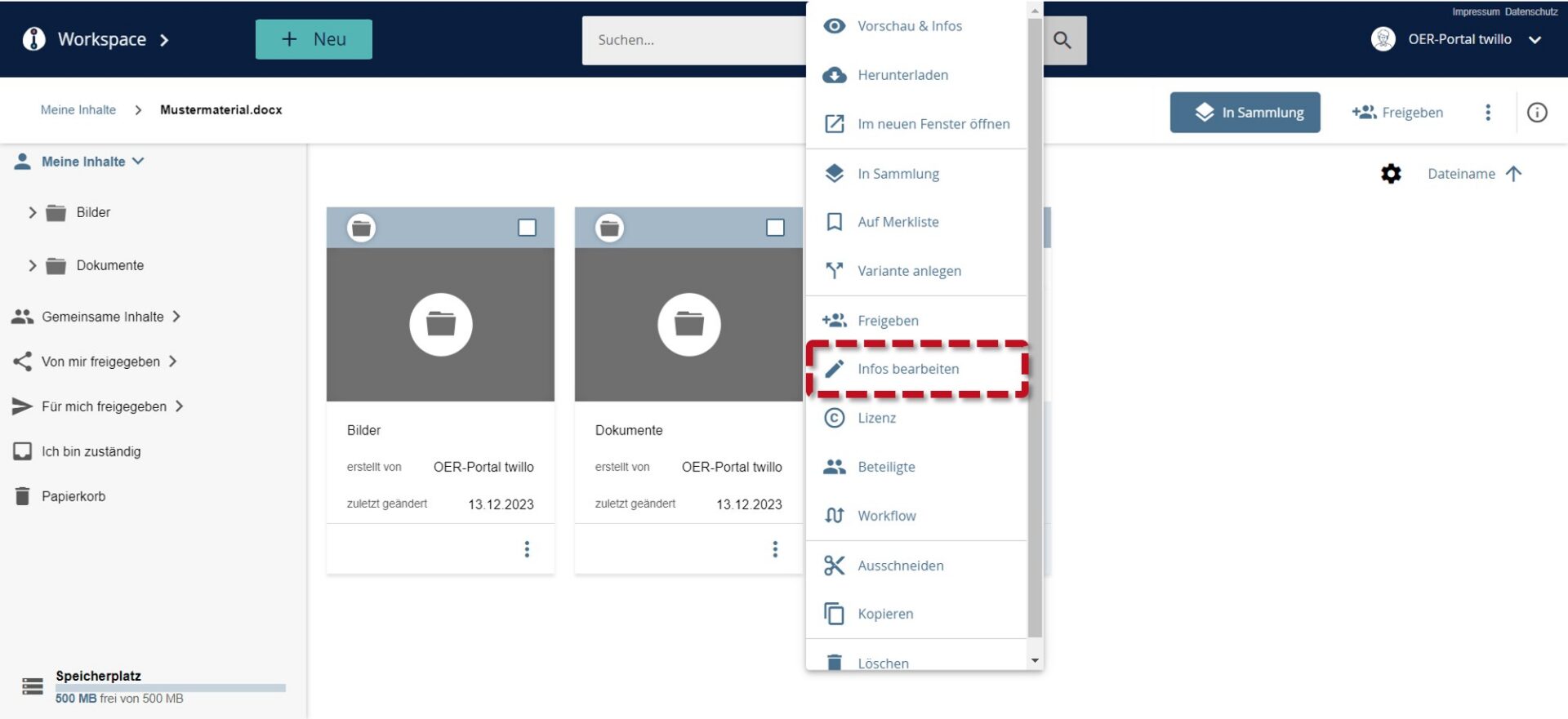
You can add a preview image (thumbnail) to your material for a better overview. This also makes it easier for other users to find your content and enhances the appearance of your material, especially if no preview is possible for the file format in the portal. Go to your workspace and click on the three dots on the tile of the material whose thumbnail you want to change. Select the Edit info tab in the following menu.
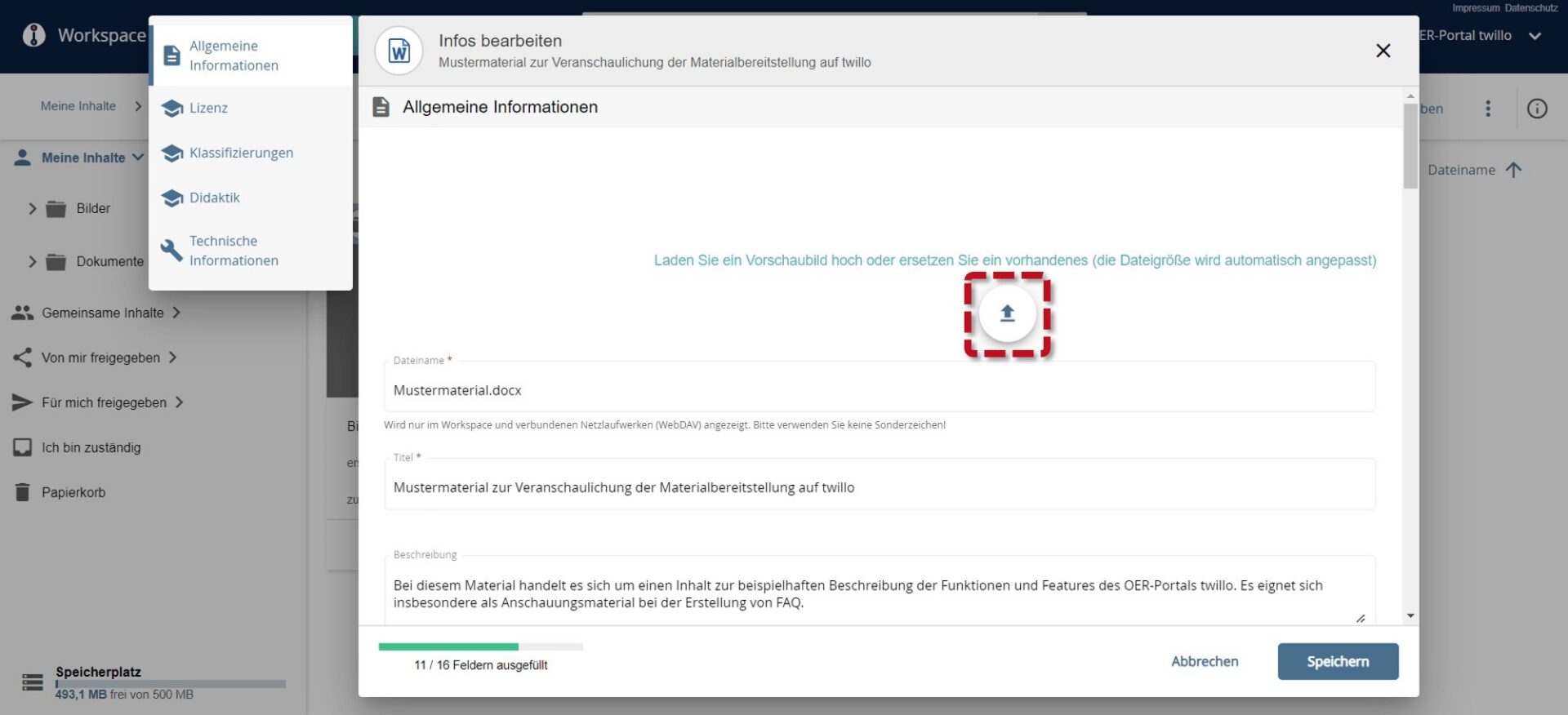
The metadata dialog opens. After clicking on the upload icon in the General information section, you can select a preview image from your files. JPG and PNG formats are supported. Do not forget to save your changes.